Ah… Windows
I usually do blog posting with a MacBook, but today I left my MacBook at the company. I happened to have content to organize… It was regrettable, and I think there will be more situations like this later, so searching for methods to set up Jekyll in Windows environments.
Ruby download… environment variable settings, etc… There are so many things to install, and just looking at them seems stressful, so finding a new method.
Let’s Set It Up First!
First, going to Control Panel and the following settings are needed.
Control Panel > Programs and Features > Turn Windows features on or off on the left > CheckingWindows Subsystem for Linux``` in the popup window
This WSF (Windows Subsystem for Linux) feature is only provided in Windows 10, and the build version must also be a specific version (14316) or above.
After this work is complete, pressing the Windows key on the keyboard and searching for bash or pressing Windows + R keys and entering
bash in the popup run window to execute.
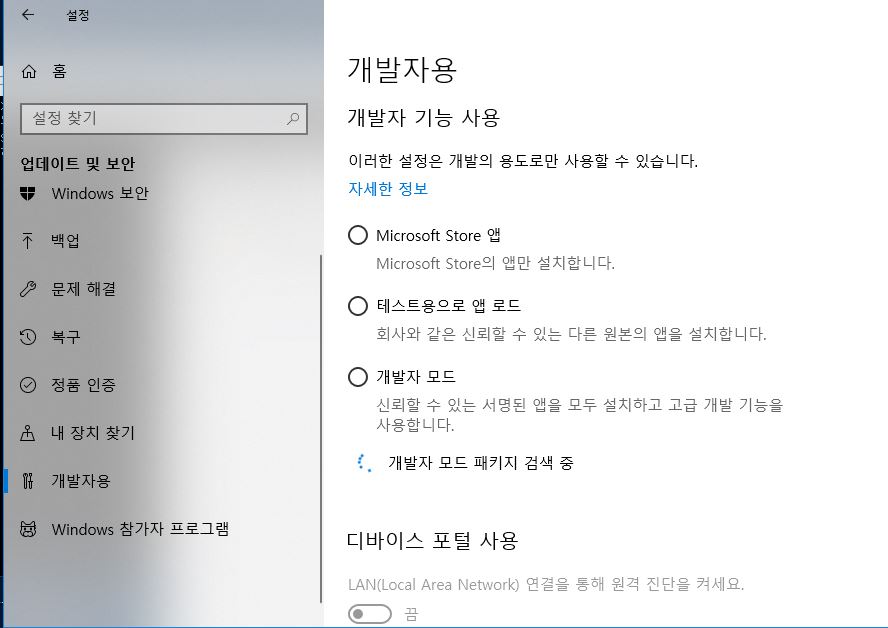
If it doesn’t proceed, proceeding after setting developer mode by going to Settings > Update & Security > For developers menu as below.
You might see text like below.
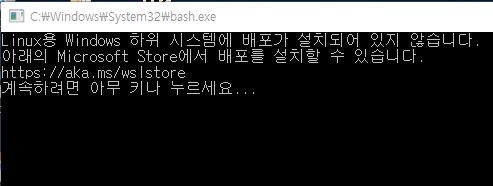
Microsoft Store (Click to go) or running the Microsoft Store app directly and getting a Linux distribution. Installing Ubuntu.

I don’t know when I changed the settings… Cases where things got stuck didn’t occur, but looking here and there, finding a guide. If you’ve executed the bash shell normally, now just entering a few commands and setup is done.
Now Let’s Install!
First, entering the following commands sequentially for maintaining the latest version and installing Ruby.
sudo apt-get update -y && sudo apt-get upgrade -ysudo apt-get install -y build-essential ruby-full
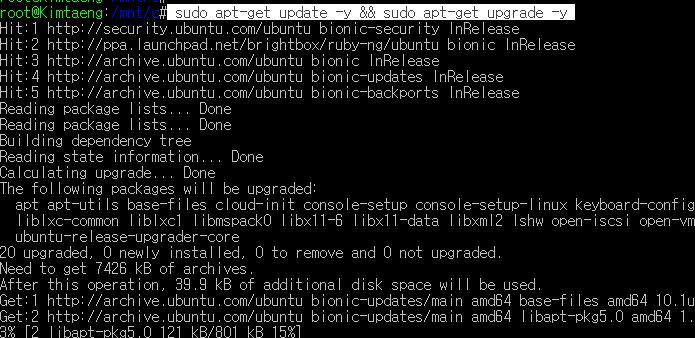
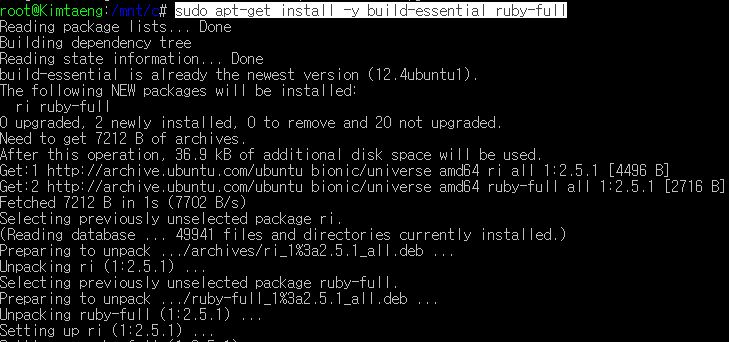
Next, entering commands sequentially to update Ruby Gems and install Jekyll.
sudo gem update --systemsudo gem install jekyll bundler
After that, starting by creating a new directory with the jekyll {folder name} command.
If you already have a project on the Windows desktop, entering the path as follows.
# /mnt/c/Users/MadPlay/Desktop/blog/madplay.github.io
$ cd /mnt/c/Users/${user name}/Desktop/
I had a repository on GitHub (github) and was managing it, so cloning it, moving to the directory, and executing as follows.
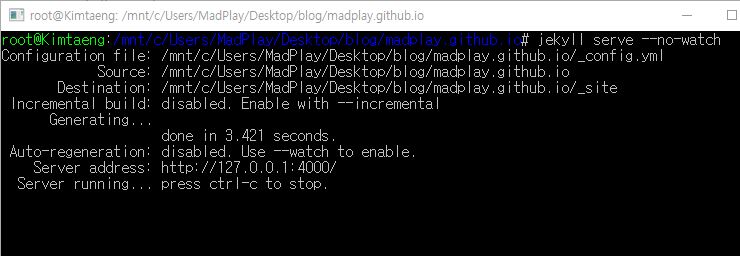
The --no-watch option is said to not apply watch option in Windows version.
A warning-level message appears saying it doesn’t work.
Related Link) Microsoft Github Issue (Click to go)
There was a bit of trial and error in the middle… Especially, encountering errors in the Jekyll installation part.
Looking here and there, there was a missing sudo apt-get install build-essential command in the middle process.
The content organized above is the shortest method omitting trial and error time.
Now running Jekyll even at home using only Windows and managing github blog.