I’m Tired of Seeing 404 Not Found
Many of you design web projects using servers like Tomcat (or Apache).
I’m still studying, but I think I’ve encountered Tomcat errors quite a bit while studying various things. Especially, I’ve seen the 404 Not Found. error very often.
The reasons that cause 404 errors are really more numerous than you might think if you think deeply, so organizing them can be very burdensome, but in a way, 404 errors are simple reasons of ‘not found’! I’ve gathered experiences of resolving errors.
I mainly use Intellij as my IDE, but this post is based on Eclipse, which more users use.

Tomcat Configuration (server.xml)
It’s good to check Tomcat’s configuration most basically. That is, the server.xml file.
If you created a Tomcat server through the process of registering Server Runtime Environments and NEW -> Server, you can check the Servers folder in Package Explorer.
(You can also check it through Window -> Show View -> Servers.)
If you check the server.xml configuration file of the Tomcat to use, there’s a part like below. You should check if it matches the mapping in web.xml or Servlet configuration.
<!-- web.xml -->
<url-pattern>/</url-pattern>

<!-- server.xml -->
<!-- MadPlay_MadLife is an arbitrarily specified path. -->
<Context docbase="MadPlay_MadLife" path="/" ... > ... </Context>
For docBase, in Eclipse you can add or remove through Add and Remove by right-clicking the Tomcat in the Servers View screen,
but if running directly through terminal, you need to check the path well.
IDE Configuration
There are also cases where web.xml cannot be found. I’ve experienced this when converting from another Git remote Repository clone to Maven.
Based on Mac OSX El Capitan environment, if you look at Right-click project -> Properties -> Deployment Assembly,
a screen like below appears.
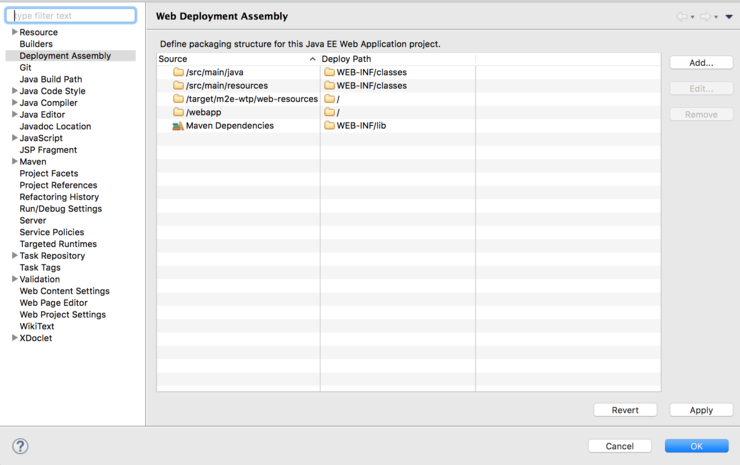
This part may differ from your project’s configuration. Change the path correctly.
It would have been nice if Maven’s pom.xml configuration was set up well.
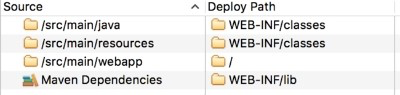
Java Issues
There may be issues with the version of Java installed in the development environment and Tomcat’s version. If you look at the link below for Java and Tomcat versions, you can check the version guide. Let’s check if there are any issues.
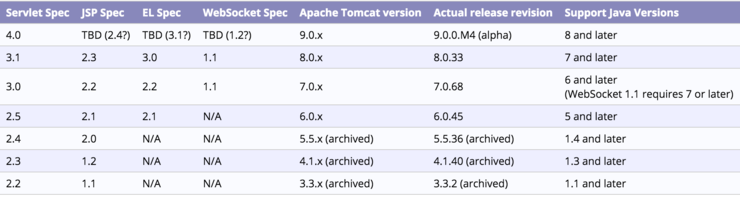
Even if versions are mapped well as above, there may be cases where they don’t match the project version.
Go to Right-click project -> Build Path -> Configuration Build Path... and check the version directly.
Also, Tomcat may not run properly due to issues with the installed Java version. Based on Mac OSX El Capitan environment, check the version in the terminal as shown below.
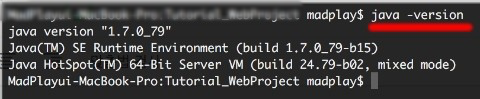
If you’ve installed multiple versions of Java to use versions appropriate for projects, you need to set environment variables. Open the terminal and enter commands as shown below to set environment variables.
# Open .bash_profile
sudo vi ~/.bash_profile

# Press i to switch to edit mode and enter as follows.
# Values in { } differ depending on the installed JDK version.
export JAVA_HOME=/Library/Java/JavaVirtualMachines/{jdk1.7.0_79.jdk}/Contents/Home

# Press ESC to exit edit mode -> Save with :wq command, then enter the command below.
# Reflect the changed .bash_profile.
source ~/.bash_profile

# Check Java version again.
java -version
Aside, Read Logs Well!
The 404 Not Found. error we’ve looked at so far doesn’t directly cause it, but there’s a message that commonly shows ‘warning’ among logs left when Tomcat runs.
Warning: [SetPropertiesRule]{Server/Service/Engine/Host/Context}
Setting property 'source' to 'org.eclipse.jst.jee.server:{....}'
did not find a matching property.
This warning, not an error, occurs due to the source attribute added from Tomcat version 6.
As a solution, double-click the Tomcat in Eclipse IDE’s Servers, and in the Overview screen that appears,
check Publish module contexts to separate XML files in Server Options.
If this warning message still doesn’t disappear, right-click the Tomcat in the Servers view and click Remove And Add to remove the project,
then right-click that project and Close Project, then Clean the Tomcat in the Servers view, then open the project again and Clean it, then Add the project to Tomcat again…
That’s what they say, and it’s correct. Settings of Tomcat and projects can get tangled. Personally, I don’t think this configuration issue has directly caused 404 errors. Some reference sites say this warning message ‘naturally occurs and can be ignored’.
What other cases of configuration issues cause 404 Not Found?