@DisplayName Annotation
In JUnit5, @DisplayName lets you add names or descriptions to a test class and each test method.
import org.junit.jupiter.api.DisplayName;
import org.junit.jupiter.api.Test;

@DisplayName("It can be declared on a class.")
class FooClass {
	@Test
	@DisplayName("It can be declared on a method.")
	void barMethod() {
		System.out.println("barMethod");
	}
}
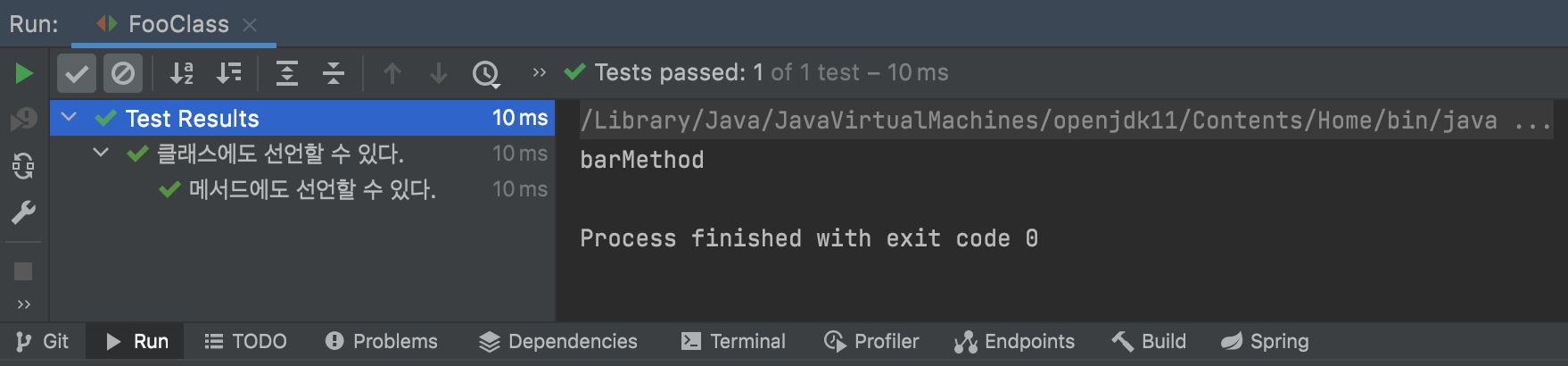
When you run this code, the names declared in @DisplayName appear as shown below. This makes tests easier to identify.
Of course, you can also use Korean method names…
What If It Does Not Work?
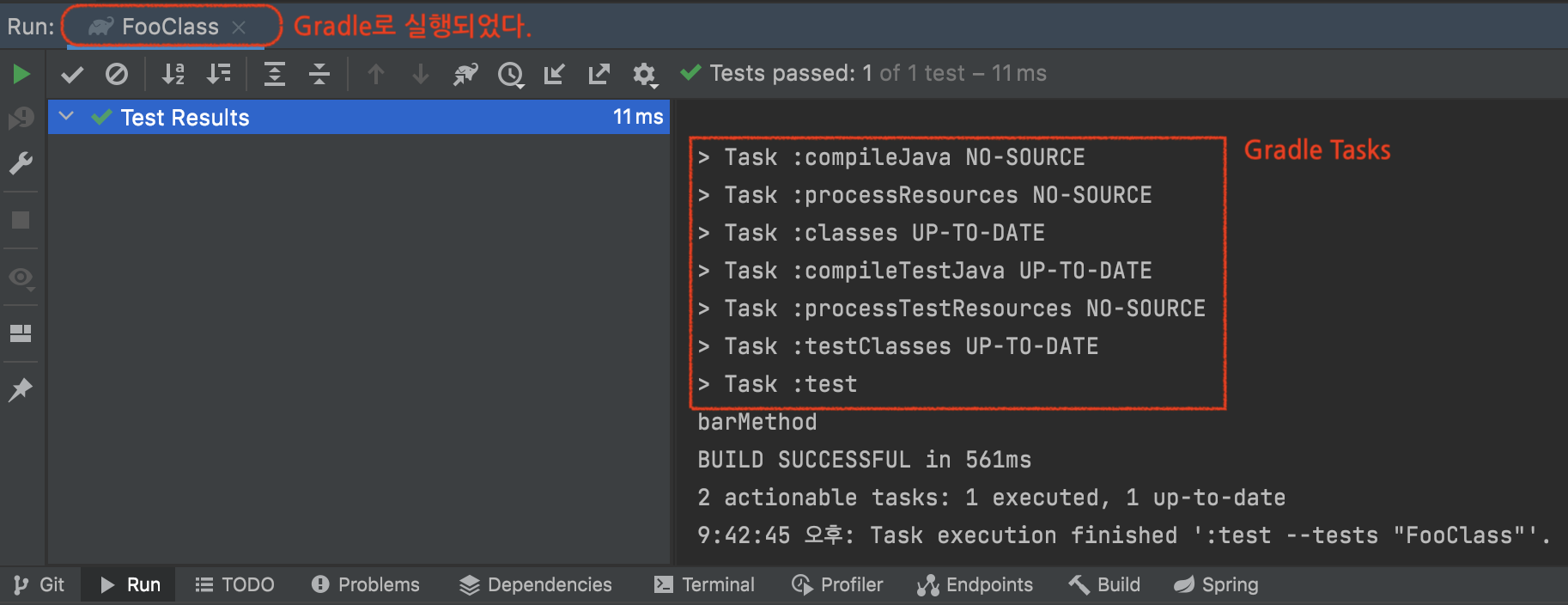
Even with @DisplayName, it may not appear in the test results as shown below.
This happens because tests run with IntelliJ’s default test runner setting, Gradle.
You can also infer this from the logs printed during test execution.
The default changed starting from version 2019.2. See the note at the end for details.
How to Fix It
The screenshot is based on IntelliJ 2021.2, but this option is similar in other versions.
The fix is simple. Open Preferences → Build, Execution, Deployment → Build Tools → Gradle, then change
Run tests using to IntelliJ IDEA as shown below. In short, switch the default test runner.
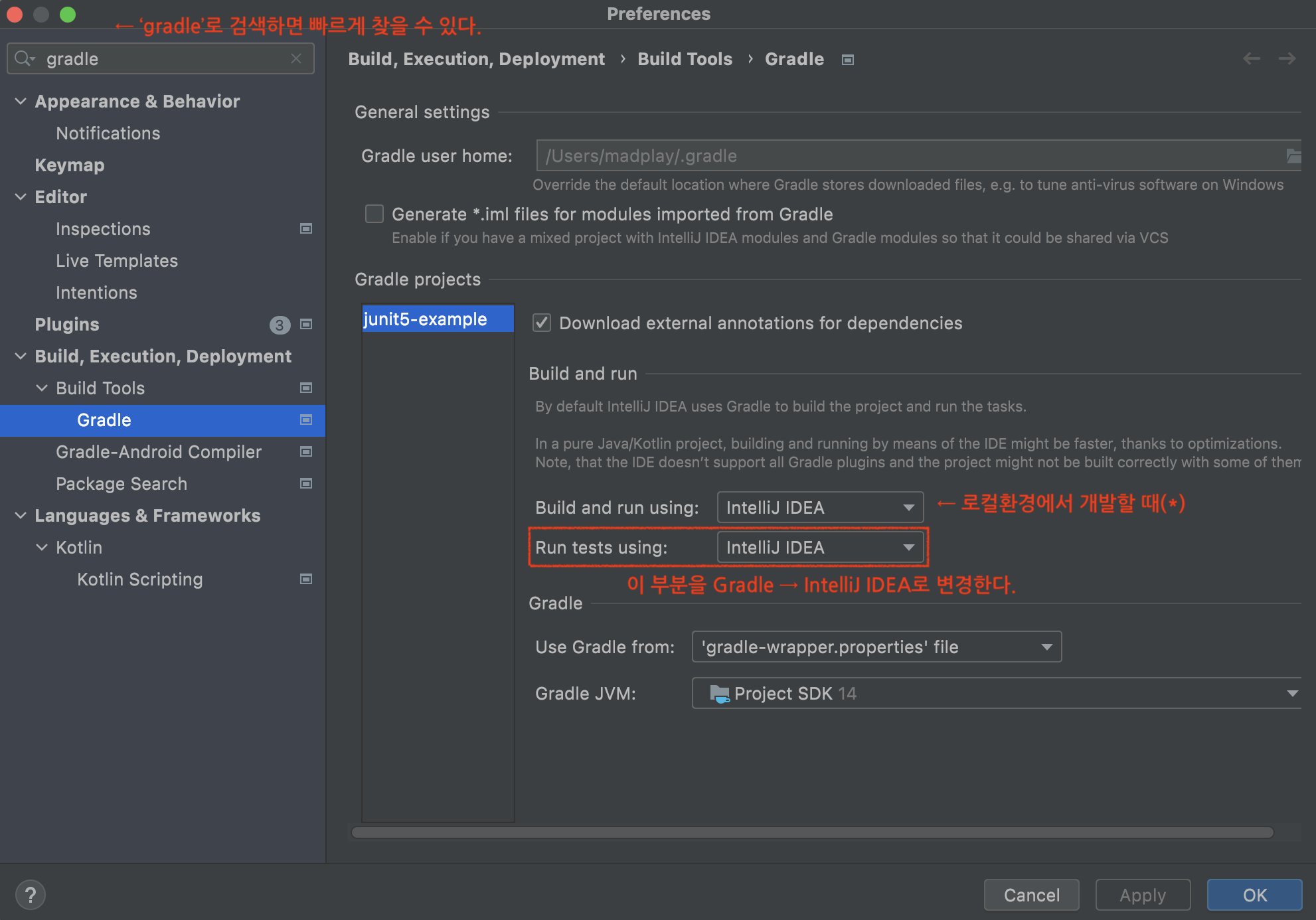
Additionally, for faster local build and run performance, you can also change Build and run using from Gradle to IntelliJ IDEA.
Why Did It Change?
The official guide for IntelliJ IDEA 2019.2 explains this change as follows.
“IntelliJ IDEA uses Gradle as the default test runner. As a result, you get the same test results on a CI server. Also, tests that run on the command line always work in the IDE.”
This default appears to prevent a common issue where code works in a local environment but fails during deployment.