Code With Me!
In September 2020, JetBrains announced the Code With Me early access program on its technical blog.
The Early Access Program (EAP) lets users try pre-release features for free and submit feedback.
Code With Me is provided as a plugin to support collaborative development and pair programming.
With it, users can share a project opened in a JetBrains IDE in real time and work together.
I used Live Share in VSCode for personal work and found real-time collaboration convenient. But it was missing in IntelliJ, which I use mainly for work. This was especially painful during remote work where screen-shared coding with teammates was essential.
Code With Me looked like a practical way to remove that friction.
It also works across JetBrains products such as IntelliJ IDEA, WebStorm, and PyCharm, which makes it useful.
Let’s look at how to use it.
How to Use It
As of December 2020, it was officially released in 2020.03, and screenshots were updated. Popup UI differs slightly by IDE version, but most options are the same. As of May 2021, it is bundled from version 2021.1 and works without plugin installation.
Code With Me was available via plugin from build 2020.2.
On macOS, open Preferences > Plugins > Marketplace and search as shown below.
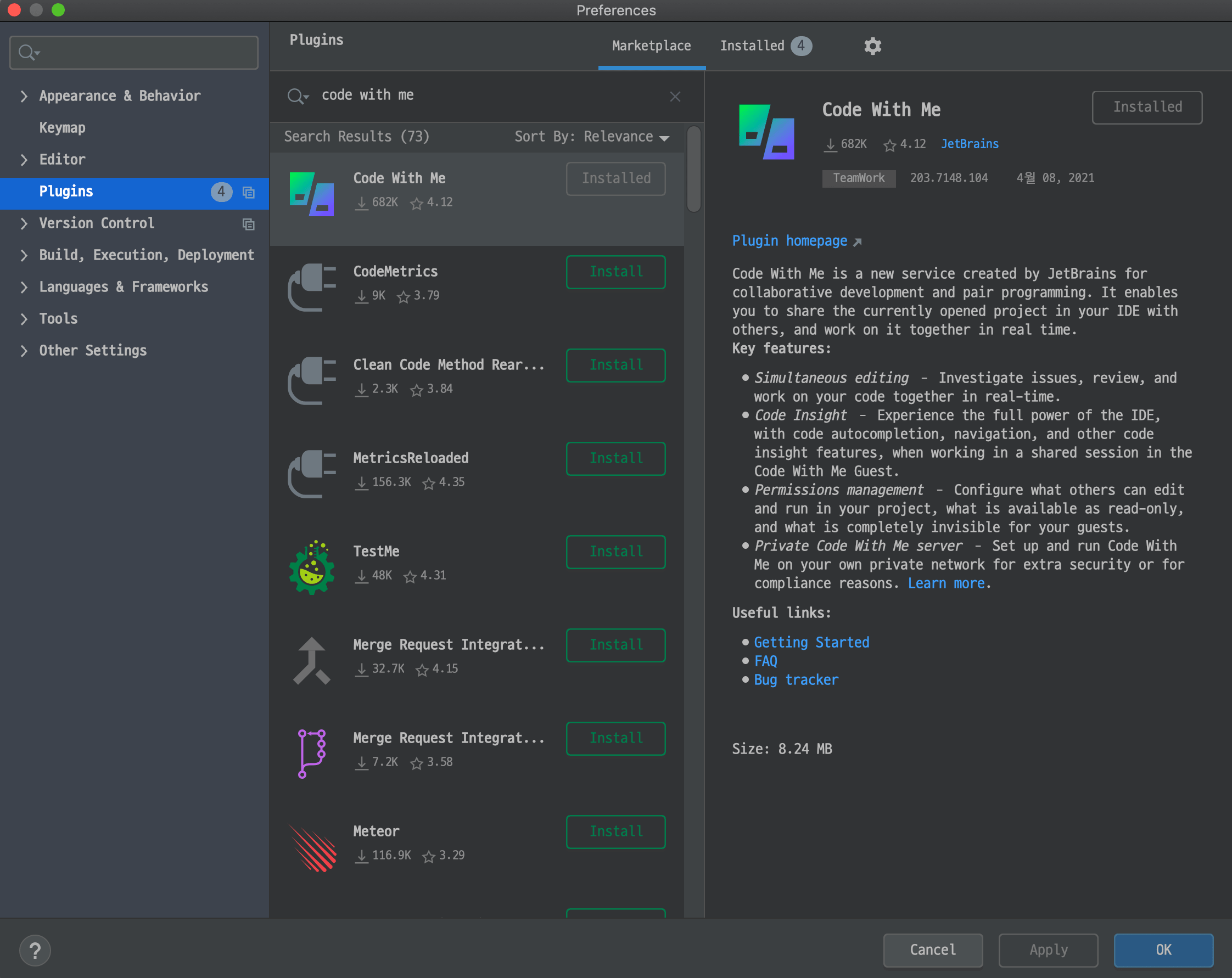
After installing and restarting IntelliJ, the following menu items appear on the top menu bar.
As of December 2020, the
Submit 'Code With Me' feedbackmenu from 2020.02.xx was removed.
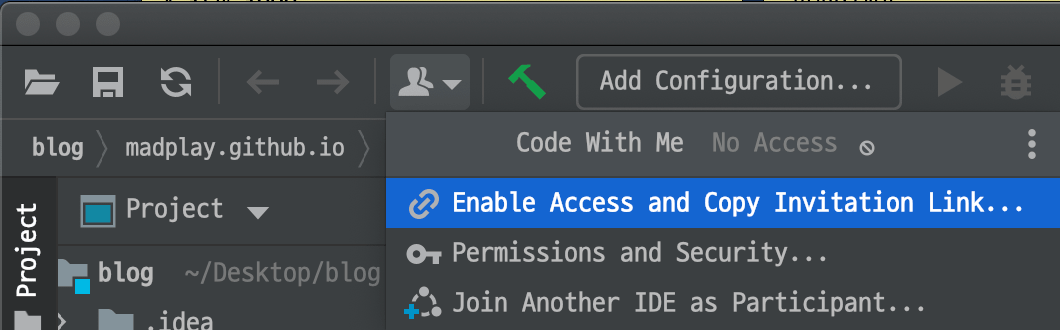
Enable Access and Copy Invitation Link
This menu creates an access link so others can connect to your IDE. You can configure permissions as shown below. Depending on permission level, you can allow file access, terminal access, execution, and more.
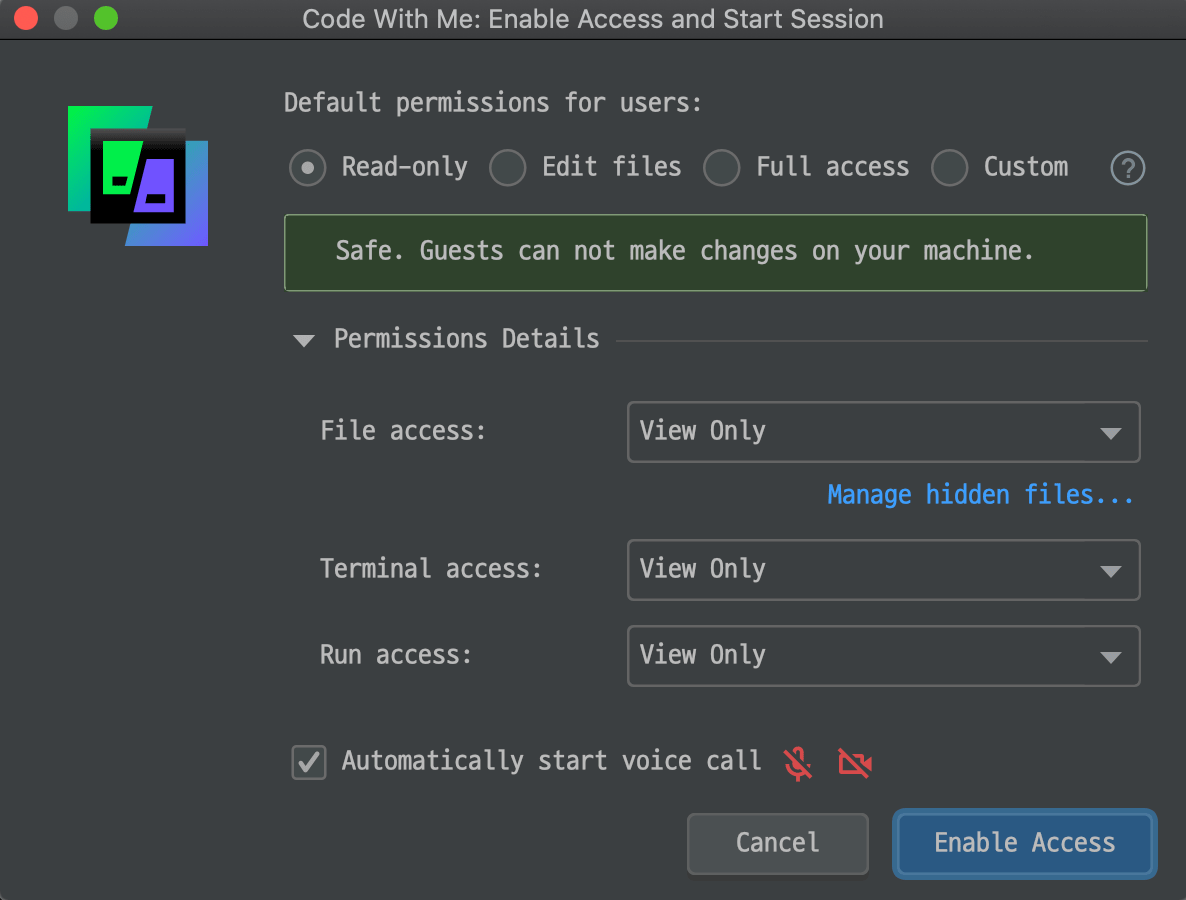
Default options in this popup can be changed in Permissions and Security described next.
Permissions and Security
This menu configures permissions used when generating invitation links.
It controls the default permission settings in the popup shown by Enable Access and Copy Invitation Link.
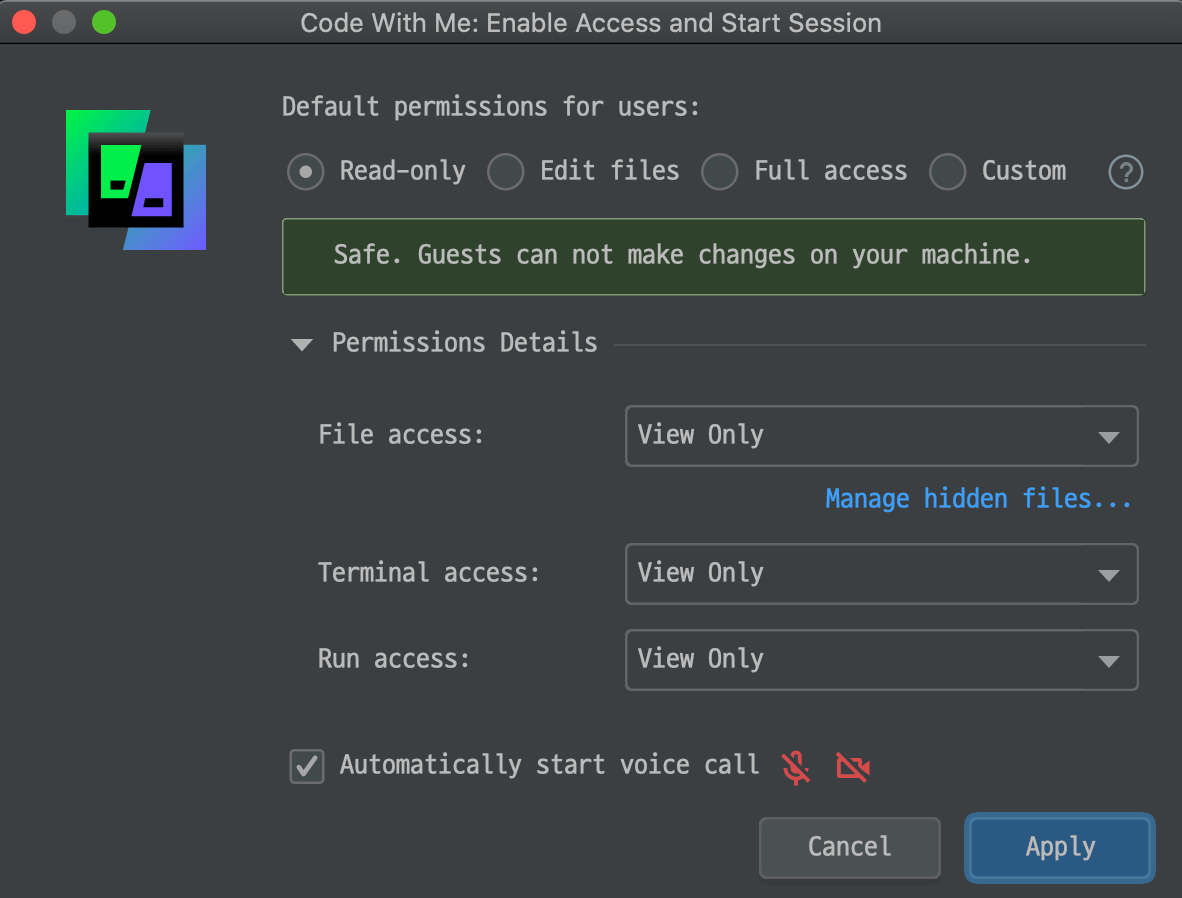
Join Another IDE as Participant
Use this when you join another user’s IDE. Enter the shared invitation link.
Let’s Use It
Now invite another user to your IntelliJ as host.
Click Enable Access and Copy Invitation Link and wait; the link is copied to clipboard.
Then paste it where needed.
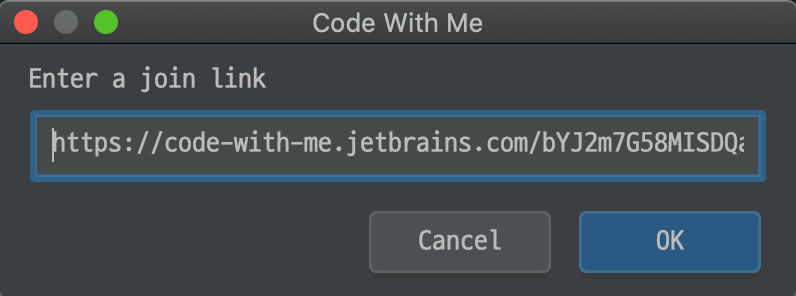
On the participant side, enter the link from Join Another IDE as Participant as shown below.
When the host link is valid, participant joins automatically after a short setup.
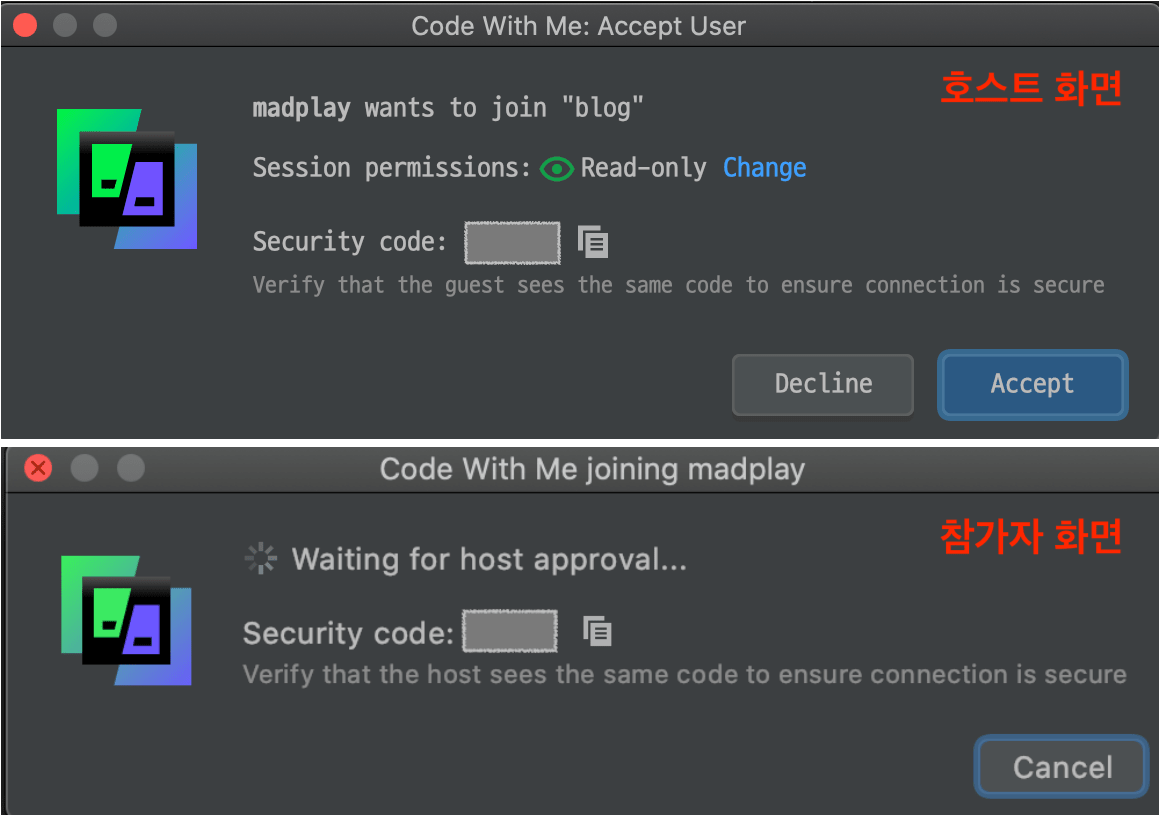
When a participant enters the link, host and participant see popups like below. Because participants may edit your code depending on permission, hosts should approve only trusted participants at this step.
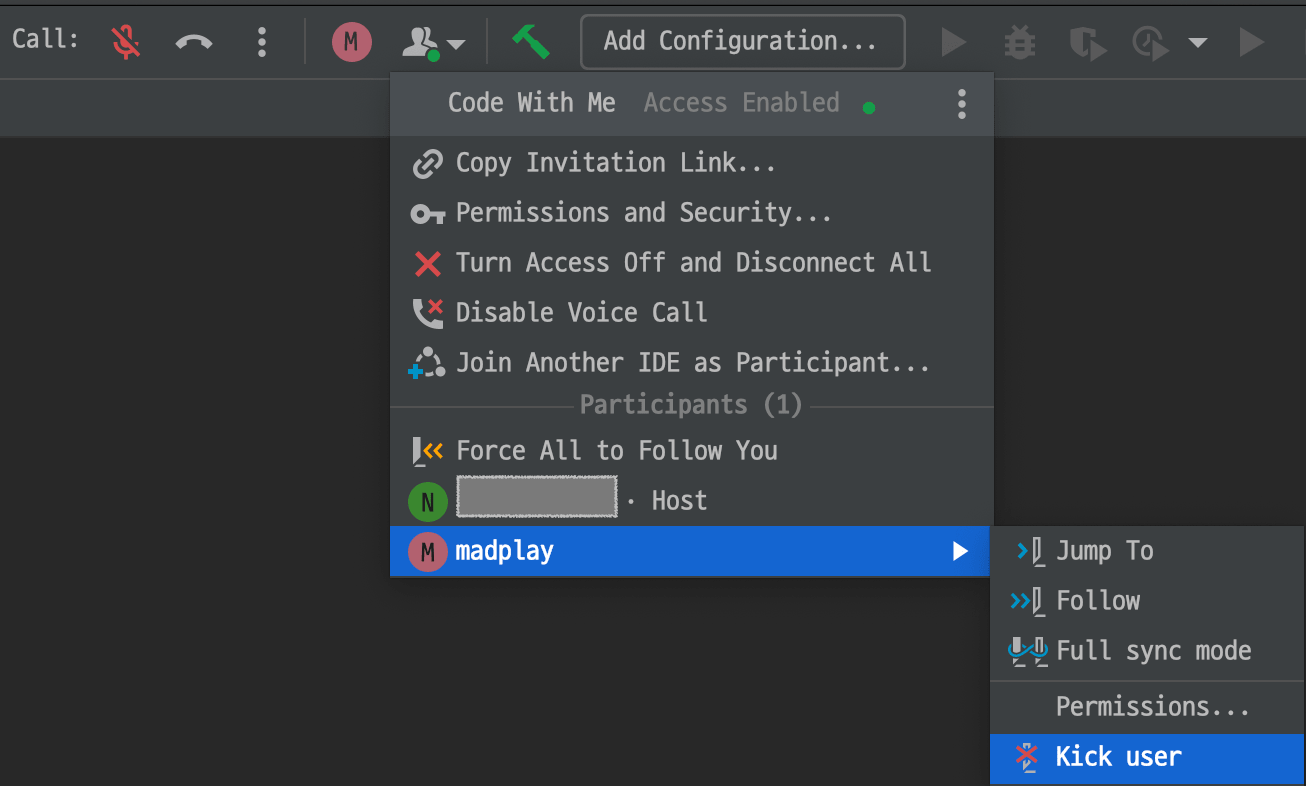
After approval and connection, the top menu bar UI changes as below.
You can adjust participant permissions, jump to participant cursor via Jump To or Follow,
and remove specific participants.
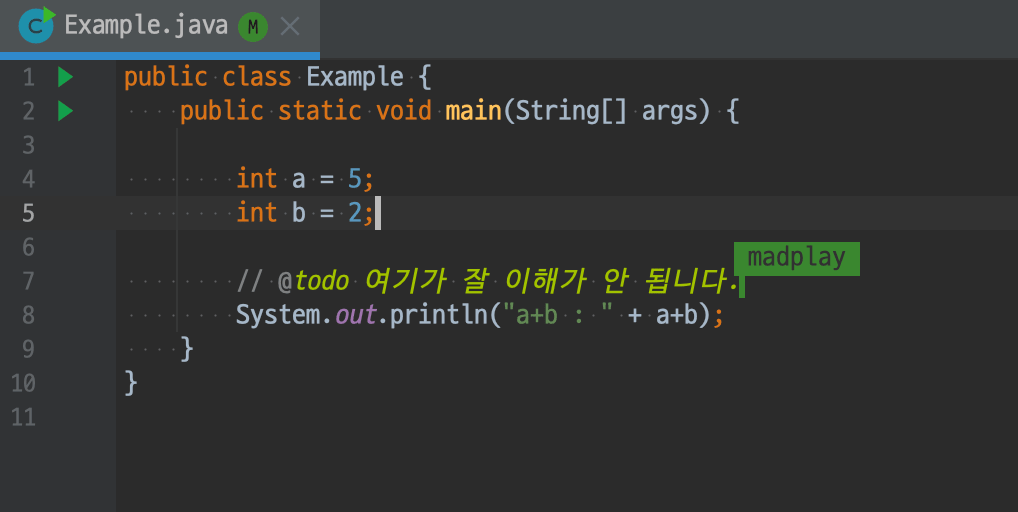
Participant cursors appear directly in the editor, so you can code while viewing the same context. For keyboard shortcuts, behavior followed host IDE settings in my tests. It remains to be seen whether future releases keep or change this behavior.
Limitations
I saw two main limitations.
First was Korean input. Even without Code With Me, IntelliJ Korean input can be slow,
so this may need to be accepted to some extent.
A practical workaround is voice chat or messenger for Korean discussion.
Second was simultaneous typing. When three people typed at once, it became chaotic. Cursors moved around and clean typing was difficult. Still, in real collaboration teams rarely type simultaneously, so this is not a major blocker.
Overall Impression
Overall, my conclusion is simple: it is very good. Latency was lower than expected, and built-in voice quality was also good. Behavior with larger participant counts may vary, but if your team uses JetBrains IDEs in production, it is worth adopting.
During remote work, there were many moments when I got blocked or needed code discussion with teammates. Each time we had to screen-share for voice calls, or commit temporary changes to separate branches and review on separate local environments. That process had real friction.
Now we are used to it, and it helped both sides.
Still, I often felt sorry to teammates because helping took a lot of time.
So the arrival of Code With Me feels valuable.
I used it mainly for study sessions so far,
but it has enough useful features for production collaboration as well.
One final note: when done, hosts should click Turn Access Off and Disconnect All.
If you forget to end the session and reuse links later,
participants may see expired links and fail to connect.
Regardless of this case, unnecessary access paths into your system should always be closed.