Creating Java executable files using JSmooth. You can download it by clicking the link below.
Then, assuming all preparation is complete, let’s create a Java exe file using JSmooth.
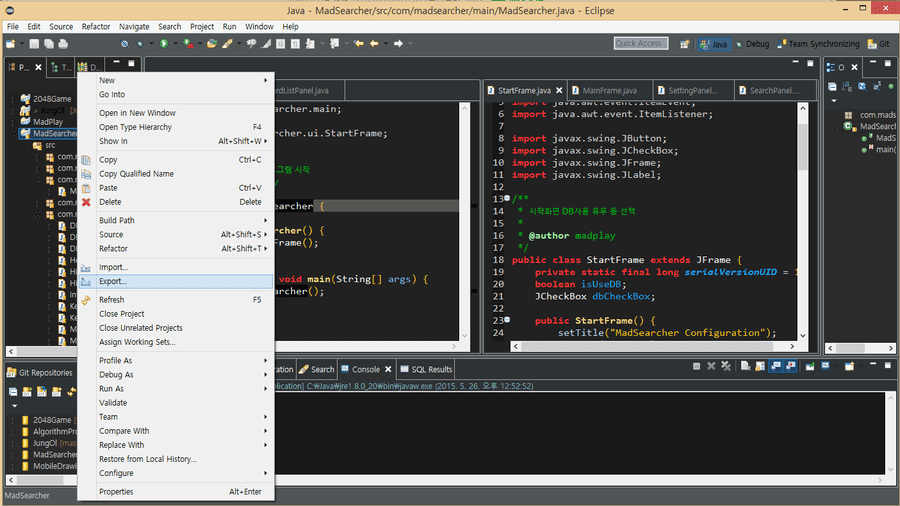
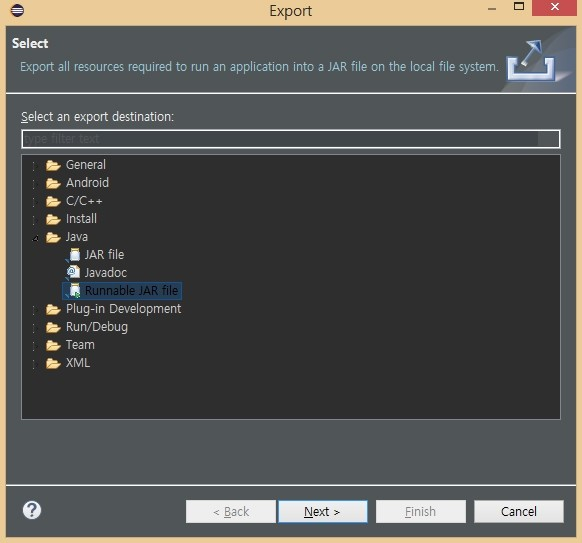
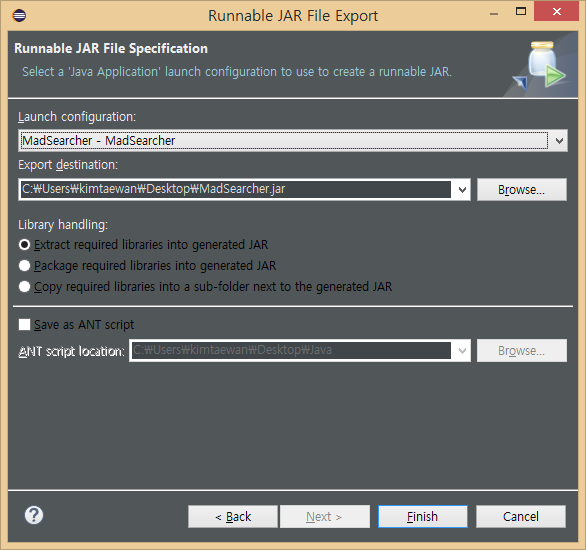
If you’ve run it at least once in Eclipse, the class containing main should be visible.
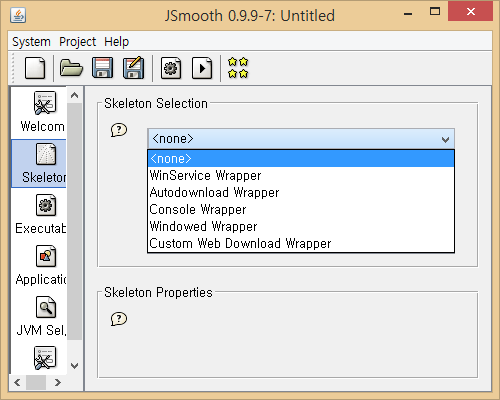
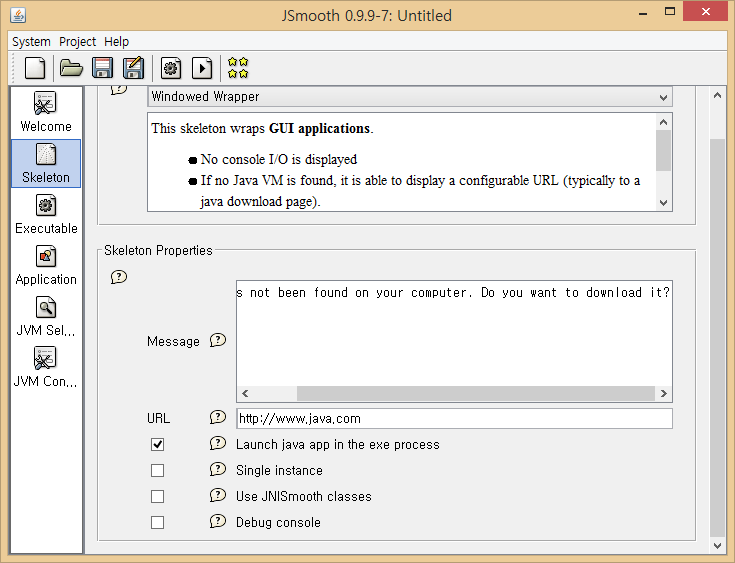
In the Skeleton window, set the appropriate type. If you’ve configured a UI, select Windowed Wrapper. I’m planning to make a program using Swing into an executable file, so I selected Windowed Wrapper.
Check Launch java app in the exe process at the bottom.
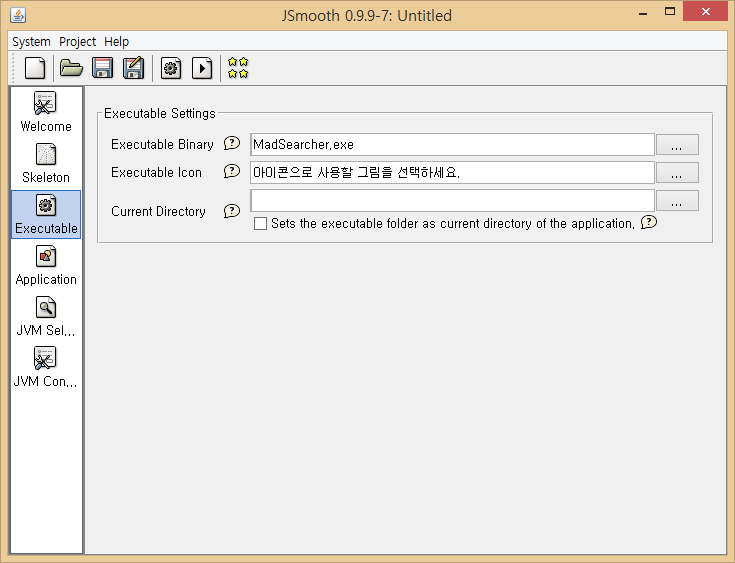
Executable Binary means the name of the created executable file (add .exe) and Executable Icon is the icon of the executable file. Select the image you want to use.
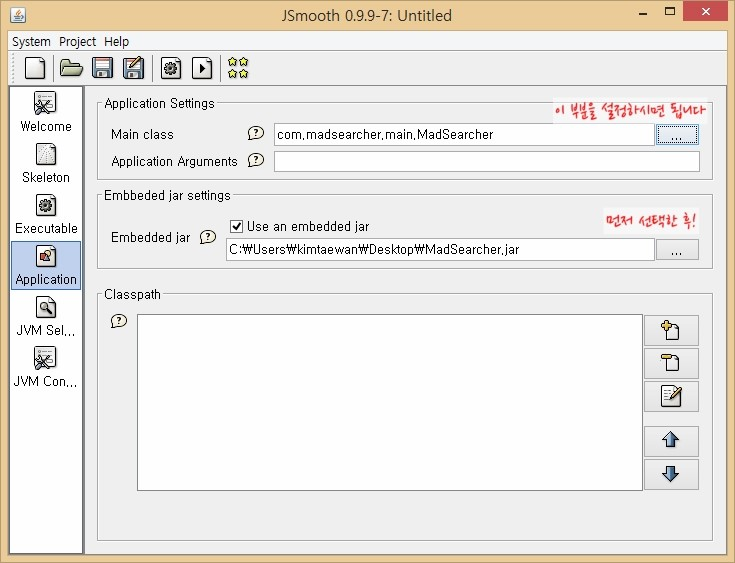
First, check Use an embedded jar in the Embedded jar settings box and select the jar file created in the previous step. Then, in Application Settings, click the settings button and specify the class containing main.
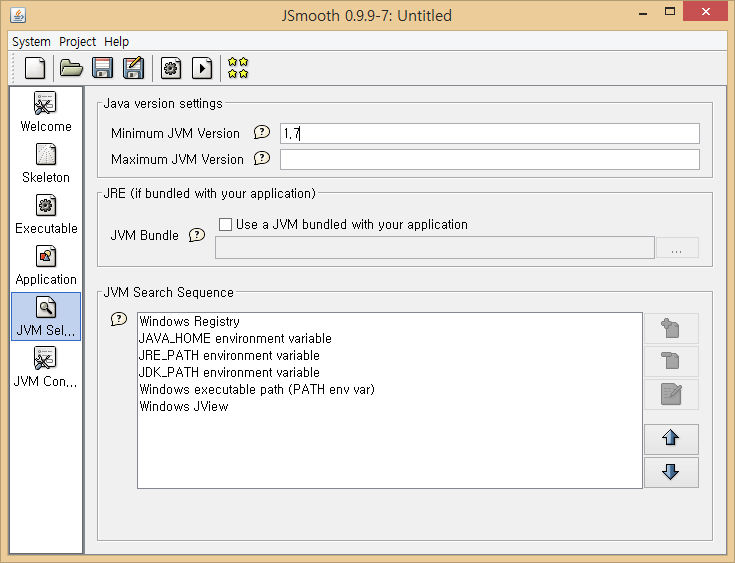
You can specify only the minimum version. Then click the gear icon at the top!
Enter the name of the executable file. (Be sure to add .exe)
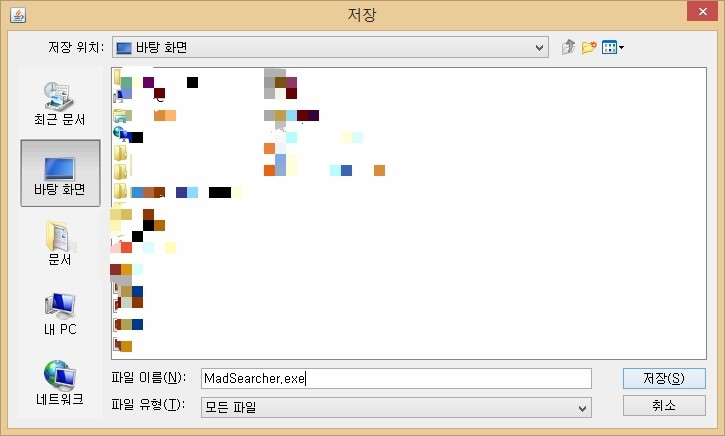
If everything went well up to here, the exe file will be created. Sometimes JSmooth doesn’t run or errors occur, but most causes are when JDK is not installed or Java Path is not set correctly.