What is Docker?
Simply put, it’s a virtualized container. It’s a file made after installing needed programs and libraries, and it’s executed through Docker. The file created here is called a Docker Image. Docker images have all information needed to execute containers.
Detailed theory about Docker will be covered in following posts, and the goal of this post is to just install Docker and directly execute simple commands.
Installing Docker
Docker installation methods differ depending on installation environments. They can be divided by environment into Linux, CentOS, etc., and for execution, there are many methods like curl, yum, etc., but this post proceeds based on Mac OS.
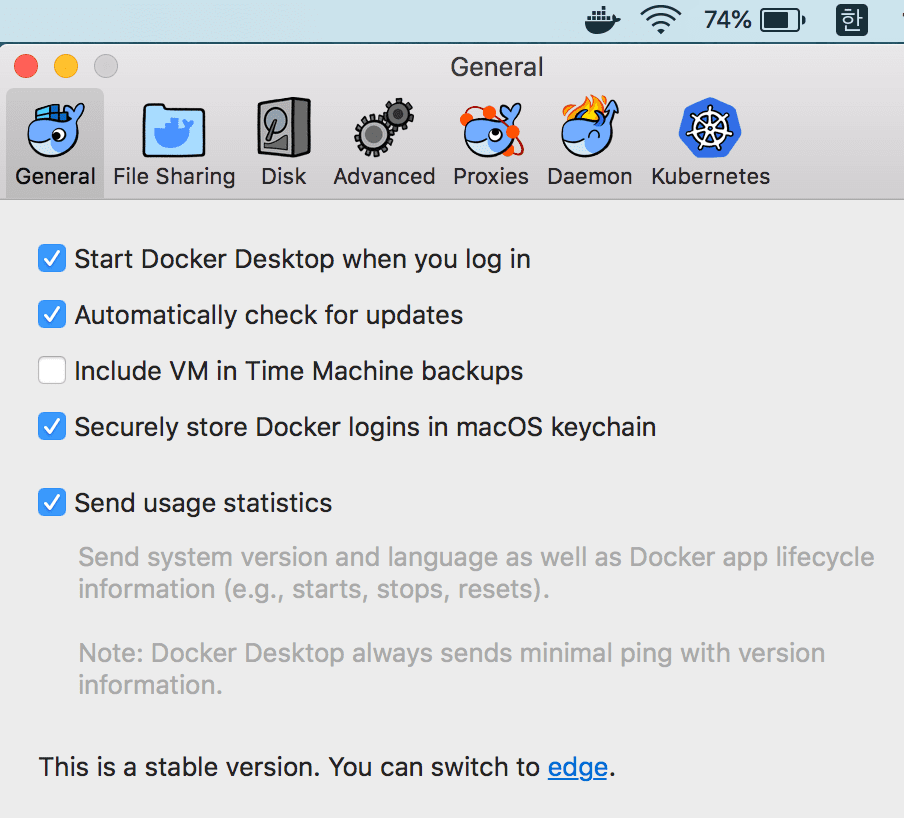
Refer to the following link and install Install Docker for Mac (Link). After download ends, installation completes without separate setup work.
Executing the docker command in terminal to check if installation completed normally.
If various Docker commands are output like when entering the java command, it’s complete.
If the docker command doesn’t execute when entered, trying executing with root permissions like sudo docker.
Executing Docker Commands
That’s right! Executing it even though we just installed it. The goal of this posting is to just install and execute!
Docker basically operates in docker + command form.
docker search
A command that can search Docker images.
docker search [OPTIONS] TERM
Searching for mysql images as practice. When executing the command, it searches images in a place called Docker Hub.
Entering the command docker search mysql in terminal.
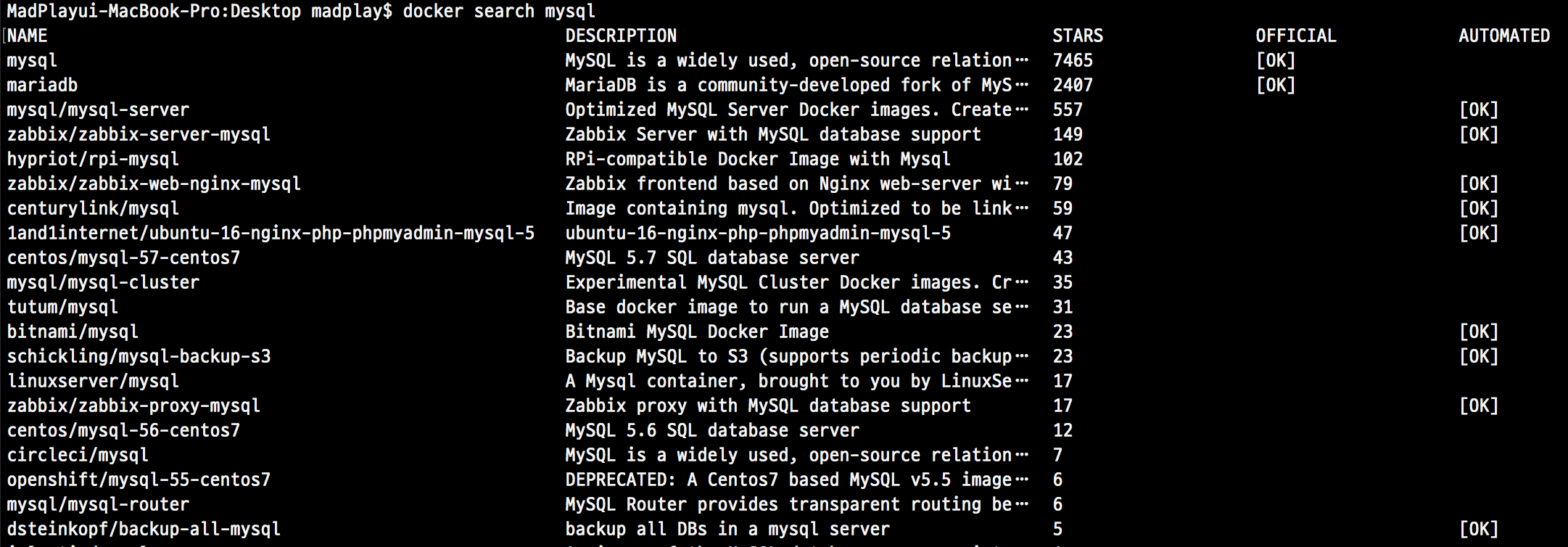
Quite a lot of Docker images are shared with the name mysql.
If you search directly on Docker Hub (Link), you can know, but official images have separate markings. Others are Docker images users made and shared themselves.
docker pull
A command that can download Docker images.
docker pull [OPTIONS] NAME[:TAG|@DIGEST]
Downloading the mysql image we examined through the search command above.
Entering the docker pull mysql command can download mysql Docker images.
- You can receive specific versions through
image name:tag name, etc. - Entering
latestin tag name downloads the latest version. - Entering user names before slashes (/) in image names receives images uploaded by those users.
- Official images don’t have user names.
$ docker pull mysql
Using default tag: latest
latest: Pulling from library/mysql
a5a6f2f73cd8: Pull complete
936836019e67: Pull complete
283fa4c95fb4: Pull complete
1f212fb371f9: Pull complete
e2ae0d063e89: Pull complete
5ed0ae805b65: Pull complete
0283dc49ef4e: Pull complete
a7e1170b4fdb: Pull complete
88918a9e4742: Pull complete
241282fa67c2: Pull complete
b0fecf619210: Pull complete
bebf9f901dcc: Pull complete
Digest: sha256:b7f7479f0a2e7a3f4ce008329572f3497075dc000d8b89bac3134b0fb0288de8
Status: Downloaded newer image for mysql:latest
docker images
Use when examining downloaded images.
docker images [OPTIONS] [REPOSITORY[:TAG]]
$ docker images
REPOSITORY          TAG                 IMAGE ID            CREATED             SIZE
mysql               latest              f991c20cb508        2 weeks ago         486MB
Confirming that the mysql Docker image downloaded above exists.
docker run
Now executing the downloaded Docker image. Execution commands are structured as below.
docker run [OPTIONS] IMAGE [COMMAND] [ARG...]
Simply examining a few options.
- -i –interactive : Means interacting with containers and maintains standard input with containers.
- Mostly use this option together with bash commands as arguments.
- –name : Can specify names for containers.
- -d –detach : Runs in background.
- -e –env : Sets environment variables in containers. Can pass passwords or setting values.
- -t –tty : Uses TTY mode. Must use together with this option to use Bash.
- -p –publish : Exposes specific ports of containers connected to hosts externally.
- For example
-p 80:80
- For example
Now, executing.
$ docker run -d -p 3306:3306 \
-e MYSQL_ROOT_PASSWORD=pw \
--name taeng_mysql \
mysql
Options used in execution commands are right above, so omitting them.
docker ps
Checking if the container named taeng_mysql is actually running.
$ docker ps -a
CONTAINER ID   IMAGE   COMMAND                  CREATED         STATUS         PORTS                               NAMES
7bbe51f63c3b   mysql   "docker-entrypoint.s…"   2 seconds ago   Up 1 second    0.0.0.0:3306->3306/tcp, 33060/tcp   taeng_mysql
Confirming it’s running normally. If STATUS value is exit, it’s a terminated state.
If it’s terminated and not visible, checking through the docker ps -a command.
docker exec
Can give specific commands to containers from outside.
docker exec [OPTIONS] CONTAINER COMMAND [ARG...]
Accessing containers directly by passing this command and bash as arguments. Entering commands as below to access the container’s shell. After accessing, executing mysql.
# Access container's shell
$ docker exec -it taeng_mysql bash

# After accessing, execute mysql command
root@3342a578b8e2:/# mysql -u root -p

# Enter pw entered with -e parameter when running container
Enter password:

# MySQL execution success
Welcome to the MySQL monitor.  Commands end with ; or \g.
Your MySQL connection id is 8
Server version: 8.0.13 MySQL Community Server - GPL

Copyright (c) 2000, 2018, Oracle and/or its affiliates. All rights reserved.

Oracle is a registered trademark of Oracle Corporation and/or its
affiliates. Other names may be trademarks of their respective
owners.

Type 'help;' or '\h' for help. Type '\c' to clear the current input statement.

mysql>

# Output database list as test
mysql> show databases;
+--------------------+
| Database           |
+--------------------+
| information_schema |
| mysql              |
| performance_schema |
| sys                |
+--------------------+
4 rows in set (0.00 sec)

# End execution
mysql> exit
Bye

# End container access
root@3342a578b8e2:/# exit
exit
docker stop
Can stop containers.
docker stop [OPTIONS] CONTAINER [CONTAINER...]
For reference, you can also use container IDs instead of container names.
IDs can be confirmed at the far left when entering the docker ps command.
$ docker ps
CONTAINER ID        IMAGE               ...
3342a578b8e2        mysql               ...
For reference, for stopped containers, adding the docker ps -a option to check.
docker rm
Can delete Docker containers that have finished executing.
docker rm [OPTIONS] CONTAINER [CONTAINER...]
docker rmi
Can delete Docker images.
docker rmi [OPTIONS] IMAGE [IMAGE...]