I Committed with Someone Else’s Name…
When developing, especially when developing with multiple people, version control is really important. Git is a representative version control tool that’s widely used. You can know who wrote what code when, and there are reflection units of development code with unique values called commits, so it’s good for tracking changes.
Sometimes mistakes occur where these reflection units called commits are reflected differently than intended. There are cases where you want to change messages included when committing, and there are also cases where you want to change authors.
It may differ per person, but if you care about the green grass (?) made from commit counts visible on your github page, who the commit author is is really important. Because code I wrote is reflected as commit activity of another ID.
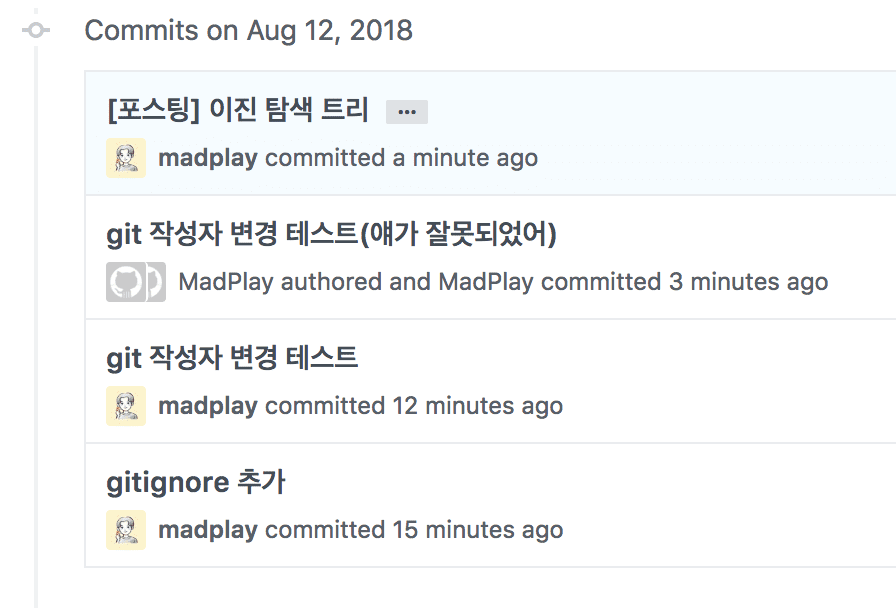
Especially if you’ve even pushed to Git remote repository, it’s more embarrassing.
If it’s the immediately previous commit and doesn’t have much impact on other branches or commits, you can turn back HEAD with git reset HEAD^1 and then
force push with git push origin +branch name.
If you haven’t pushed yet and it’s in local state, you can also modify the immediately previous commit with the git commit --amend command.
But today, modifying commits in situations like below through git’s rebase command:
- Already reflected state in Git remote repository
- Commits located in the middle, not immediately previous
Find Commit Hash Value
First, you need to know the hash value of the commit immediately before the commit to change.
You can check hash values by looking at commit history on github or with commands like git log in terminal.
$ git log

* commit 10aa749 (HEAD -> master, origin/master)
||| Author: madplay <itsmetaeng@gmail.com>
|||
|||     [Posting] Binary Search Tree
|||
|||     https://madplay.github.io/post/binary-search-tree-in-java

* commit b813011
||| Author: Kimtaeng <madplay@MadPlayui-MacBook-Pro.local>
|||
|||     git author change test (this one was wrong)

* commit 80be237
||| Author: madplay <itsmetaeng@gmail.com>
|||
|||     git author change test

* commit 97a9e69
  Author: madplay <itsmetaeng@gmail.com>
The hash value of the commit to change is b813011. Since this work starts targeting the commit immediately before this commit,
the hash value to find is 80be237. The terminal result above is based on the environment I’m working in, so values are generated differently per user.
Using rebase
Now starting. Enter as follows in terminal. Of course, assume the current location on terminal is a Git project. As mentioned earlier, you must enter the hash value of the commit immediately before the commit to change.
Before starting, rebase must be used very carefully because it refurbishes git history. Make sure you used it correctly before finally reflecting it in the remote repository.
1) Enter git rebase command
# git rebase -i {hash value of commit before commit to change}
# -i(--interactive): can execute rebase in interactive mode
$ git rebase -i 80be237
Content Addition
Using the caret (^) symbol points to the previous commit of that commit, so you can directly use the hash value of the commit to change.
Thank you to @youknowone for the related opinion :)
# git rebase -i {hash value of commit to change}^
$ git rebase -i b813011^
2) Change Commit Setting of Change Target
When you enter the rebase related command above, the vi editor automatically opens as follows.
The initial state is where all commits are pick {hash value} {commit message}, and change the pick at the front of commit b813011 to change to
edit or e. Doing this designates that commit as a rebase target.
edit b813011 git author change test (this one was wrong)
pick 10aa749 [Posting] Binary Search Tree

# Rebase 80be237..10aa749 onto 80be237 (2 command(s))
#
# Commands:
# p, pick = use commit
# r, reword = use commit, but edit the commit message
# e, edit = use commit, but stop for amending
# s, squash = use commit, but meld into previous commit
# f, fixup = like "squash", but discard this commit's log message
# x, exec = run command (the rest of the line) using shell
# d, drop = remove commit
#
# These lines can be re-ordered; they are executed from top to bottom.
#
# If you remove a line here THAT COMMIT WILL BE LOST.
#
# However, if you remove everything, the rebase will be aborted.
#
# Note that empty commits are commented out
And you can save and exit with the :wq command. As you can see from the comments, there are many commands when proceeding with rebase.
Since changing the commit author (author) is the priority now, changing it to edit and saving:
$ git rebase -i 80be237
Stopped at b81301124d4b292f8ce0ff484ae73c56f5b3aea4... git author change test (this one was wrong)
You can amend the commit now, with

	git commit --amend

Once you are satisfied with your changes, run

	git rebase --continue
3) Modify Author
After saving and exiting, it starts rebase progress mode like the last screen above.
Since there’s a commit changed to edit earlier. Then now enter the correct author (author) with the following command.
$ git commit --amend --author="Author Name <email address>"

# Or you can enter only up to git commit --amend and then directly modify with vi editor.
$ git commit --amend
git author change test (this one was wrong)

# Please enter the commit message for your changes. Lines starting
# with '#' will be ignored, and an empty message aborts the commit.
#
# Author:    madplay <itsmetaeng@gmail.com>
#
# interactive rebase in progress; onto 80be237
# Last command done (1 command done):
#    e b813011 git author change test (this one was wrong)
# Next command to do (1 remaining command):
#    pick 10aa749 [Posting] Binary Search Tree
# You are currently splitting a commit while rebasing branch 'master' on '80be237'.
#
# Changes to be committed:
#       modified:   pom.xml
#
When you enter the command, you can see modifications reflected as follows.
$ git commit --amend --author="madplay <itsmetaeng@gmail.com>"
[detached HEAD 515c3cc] git author change test (this one was wrong)
 1 file changed, 1 insertion(+), 1 deletion(-)
4) Continue to Next Commit
Since we’ve finished modifying the commit we need to modify, ending the rebase work:
$ git rebase --continue
If you changed another commit to edit in step 2, it will proceed targeting the next commit,
and if there are no more commits to proceed, a message like below appears.
$ git rebase --continue
Successfully rebased and updated refs/heads/master.
If there are more commits to modify, you can repeat steps 3 and 4.
5) Push and Check
Now you can push the commit content reflected locally to the remote repository again.
However, after rebase work, you must use the --force option or add + in front of the branch name to proceed forcefully.
# '-f branch name' is also possible instead of '+branch name'.
$ git push origin +branch name
After push is complete, go to the github page and check.
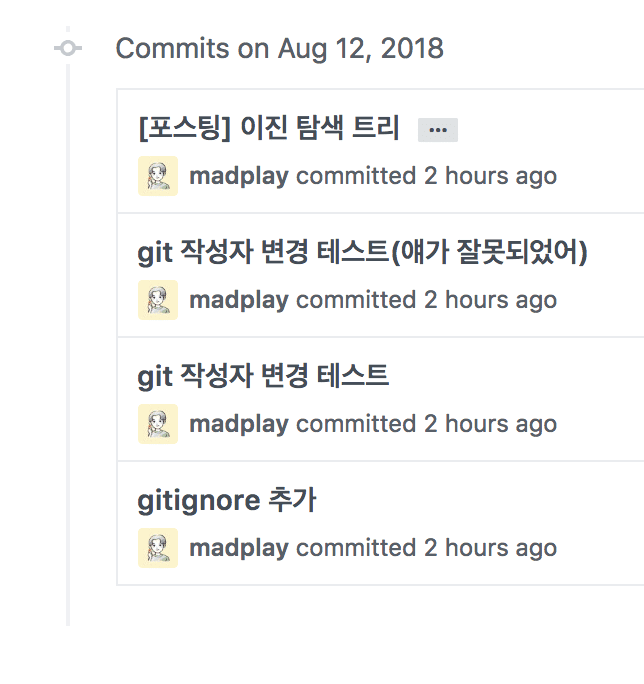
It’s changed well. I recovered the precious commit I lost by entering the author incorrectly!
What If You Want to Revert? reflog
As mentioned earlier, but just in case you reflected it incorrectly…
If you’ve reflected it in the remote repository in a state where rebase was used incorrectly, you’ll need to revert it.
At this time, don’t panic and use reflog. This command is a command that can view HEAD change history.
Unlike rebase or filter-branch we’ll examine as a bonus later, since it simply checks logs, you can execute it freely.
If you found the log at the point you need to recover with reflog, you can go back to that point using the reset command.
$ git reset --hard commit hash code
Doing this reverts all commit history you performed previously. Reflect it in the remote repository again in this state. Of course, force push option is also needed at this time.
# '-f branch name' is also possible instead of '+branch name'.
$ git push origin +branch name
Bonus. filter-branch
As a bonus, git also provides git filter-branch, a branch rewriting feature, besides the rebase command we used this time.
However, since it can change project content entirely, you must use it very carefully.
$ git filter-branch --env-filter '
WRONG_EMAIL="{wrong email address}"
NEW_NAME="{name to change to}"
NEW_EMAIL="{email address to change to}"

if [ "$GIT_COMMITTER_EMAIL" = "$WRONG_EMAIL" ]
then
    export GIT_COMMITTER_NAME="$NEW_NAME"
    export GIT_COMMITTER_EMAIL="$NEW_EMAIL"
fi
if [ "$GIT_AUTHOR_EMAIL" = "$WRONG_EMAIL" ]
then
    export GIT_AUTHOR_NAME="$NEW_NAME"
    export GIT_AUTHOR_EMAIL="$NEW_EMAIL"
fi
' --tag-name-filter cat -- --branches --tags
Looking at the structure, it’s a structure that registers filters and finds previous commits. Personally, it’s unfamiliar since I don’t encounter this method often, but it seems useful. I tried it as a test, and since it searches all commits, it takes a bit more time.
Bonus. Author and Committer
On the other hand, Git distinguishes between authors (Author) and committers (Committer). For example, if I added functionality to an open source project and sent a PR, and that project’s manager applied the added functionality, I become the author and the project manager becomes the committer.
The method using rebase and commit amend, which is this post’s topic, is a method that can only modify Author.
However, the filter-branch we examined as a bonus above can modify both.
In Conclusion
We learned methods for changing previous commit authors through git rebase.
It seems like something you can commonly experience when simultaneously using company or school accounts and personal github accounts.
When using rebase or filter-branch, you must use them very carefully because they newly modify git history.
Worth emphasizing multiple times, a very useful but dangerous feature if used incorrectly :D